The Home Screen
Purpose of the Home Screen
The Home Screen is the first screen you see each time you start SKipper, unless you configure one of your other Pages to do that. It shows all of the user-defined Pages that are configured to be visible on the type of device you're using (phone, tablet, or computer), so you can get to any Page with one click or tap. It also shows the two system-defined Pages: Edit Pages, and Settings. And it gives you a graceful way to close SKipper - the "Exit SKipper" button.
Below are two images of the same Home Screen: the first one is how it would look on a laptop / desktop in landscape orientation, and the second is how it would look on a phone or tablet in portrait orientation. The only real difference is the placement of the Icon Bar.
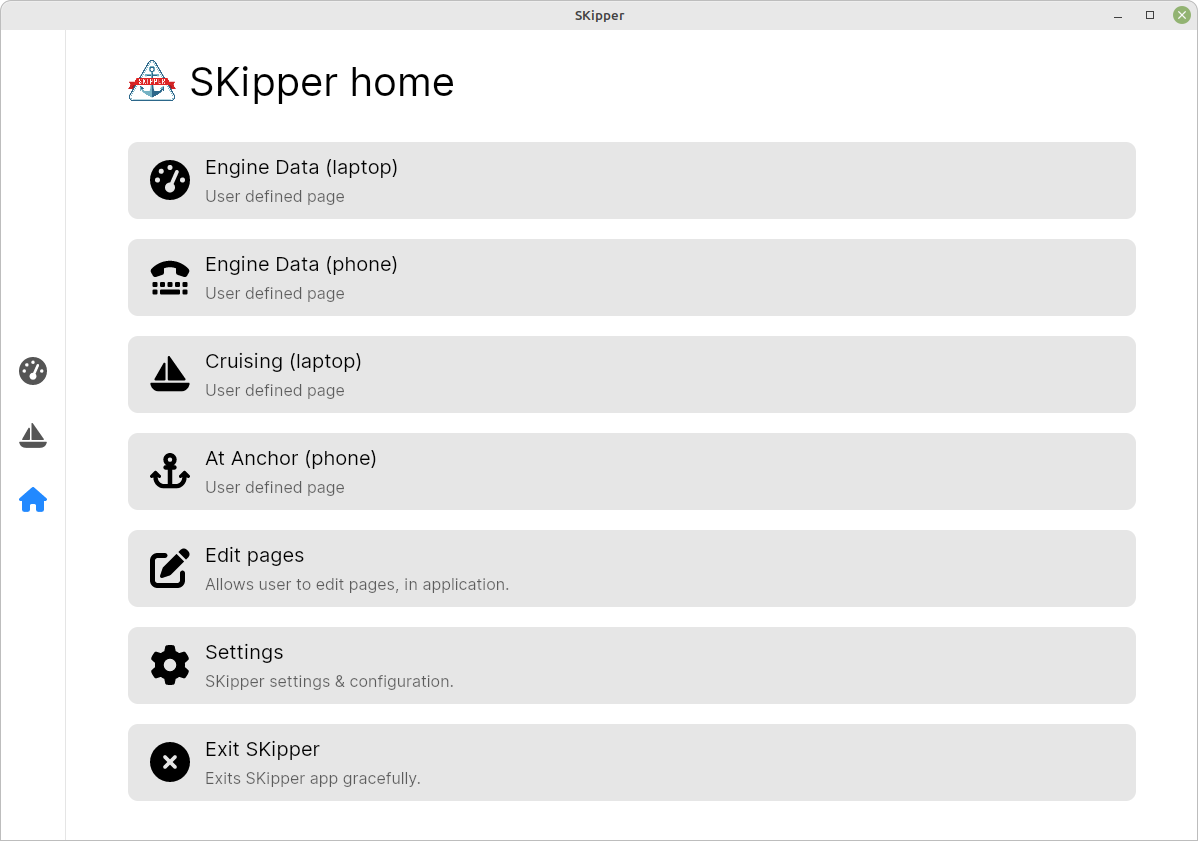
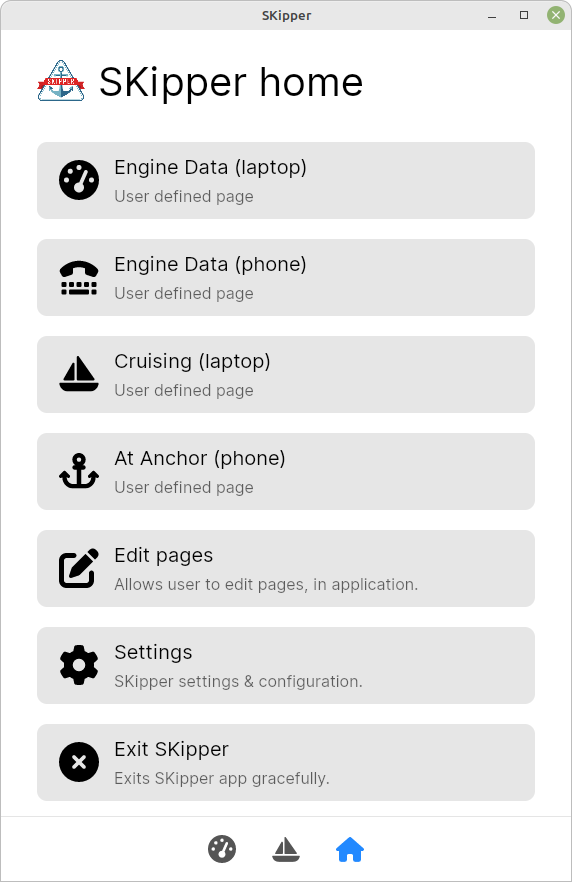
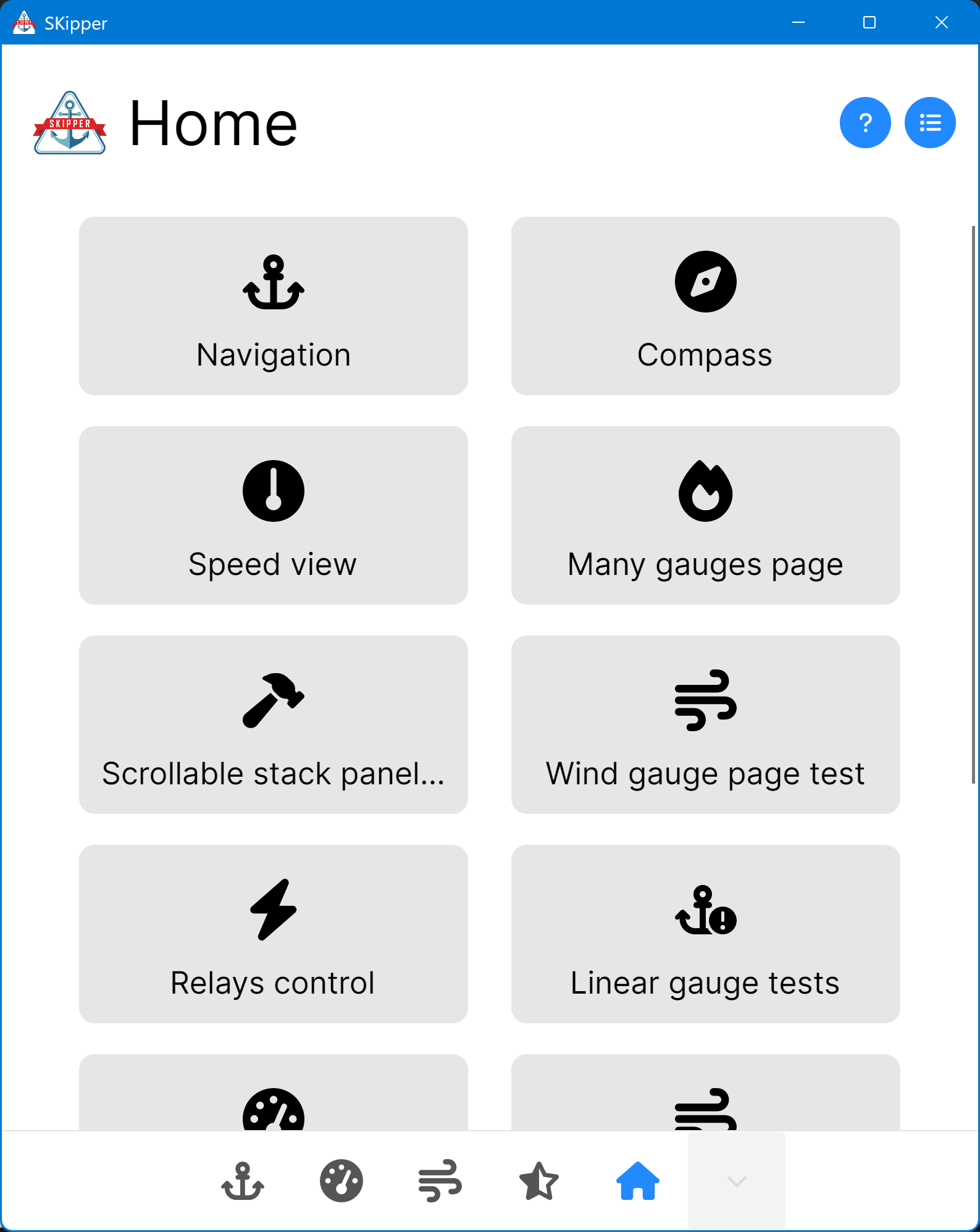
Every Home Screen has all of the user-defined pages at the top, followed by Edit Pages, Settings, and Exit SKipper (only on desktop when enabled). From version v1.24 user can customize appearance of main menu by toggling tiles button at the top right corner.
Tracks & routes
Tracks & routes uses map view to visualize your stored tracks and routes. The page has flyout that allows user to search tracks and routes that can be hidden to use whole space to examine track or route.
Tracks
User can lookup any track by selecting date time (middle of the blue button at the top), or use arrows to navigate day before or next day. SKipper will show found tracks with simple summary like range, average speed and maximum speed. When user taps on the track SKipper will show track on the map and hide search flyout.
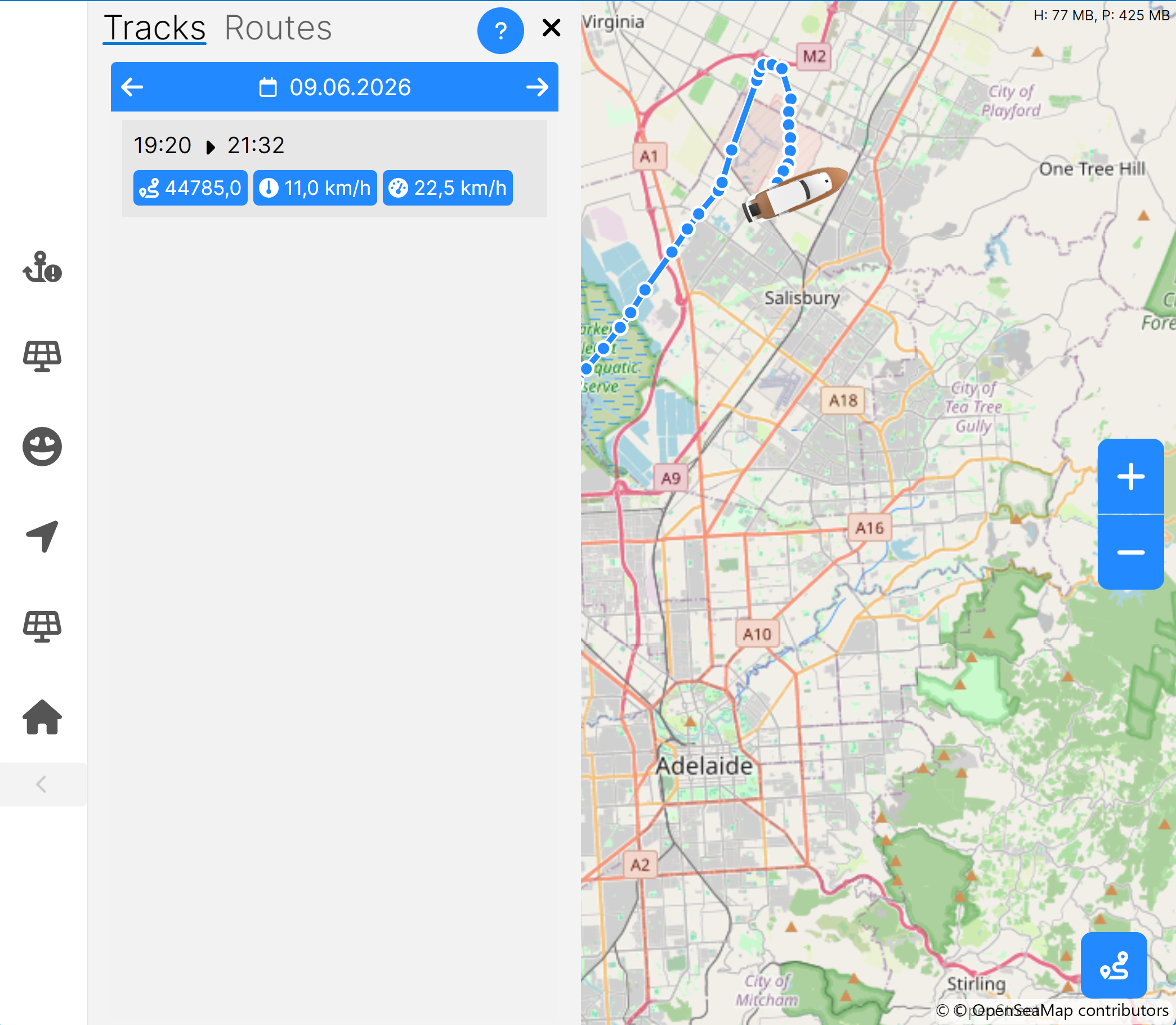
Search flyout can be shown by tapping on blue button with magnifying glass icon. When track is selected new blue button will appear at the lower-right corner of the screen with route like icon.
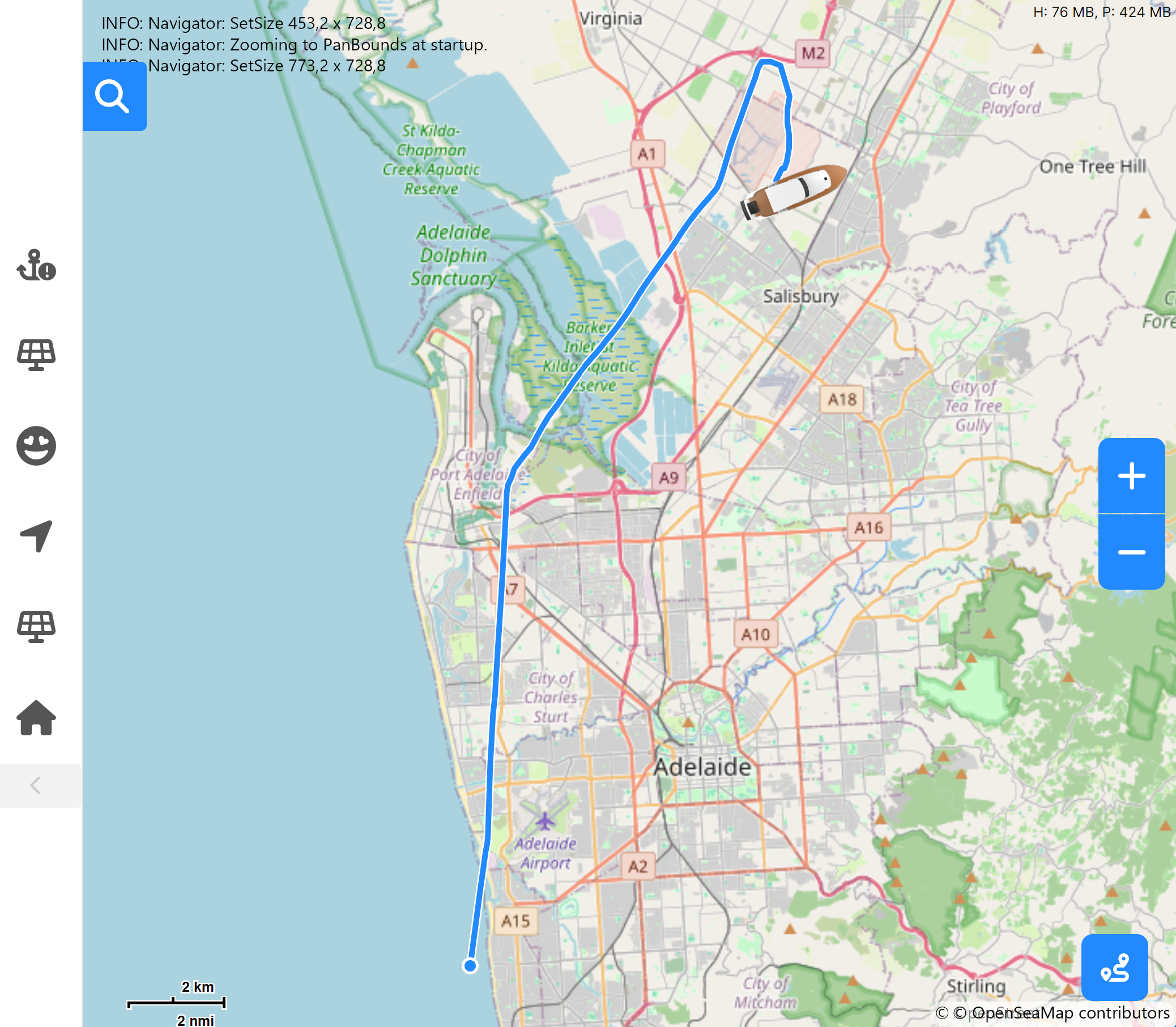
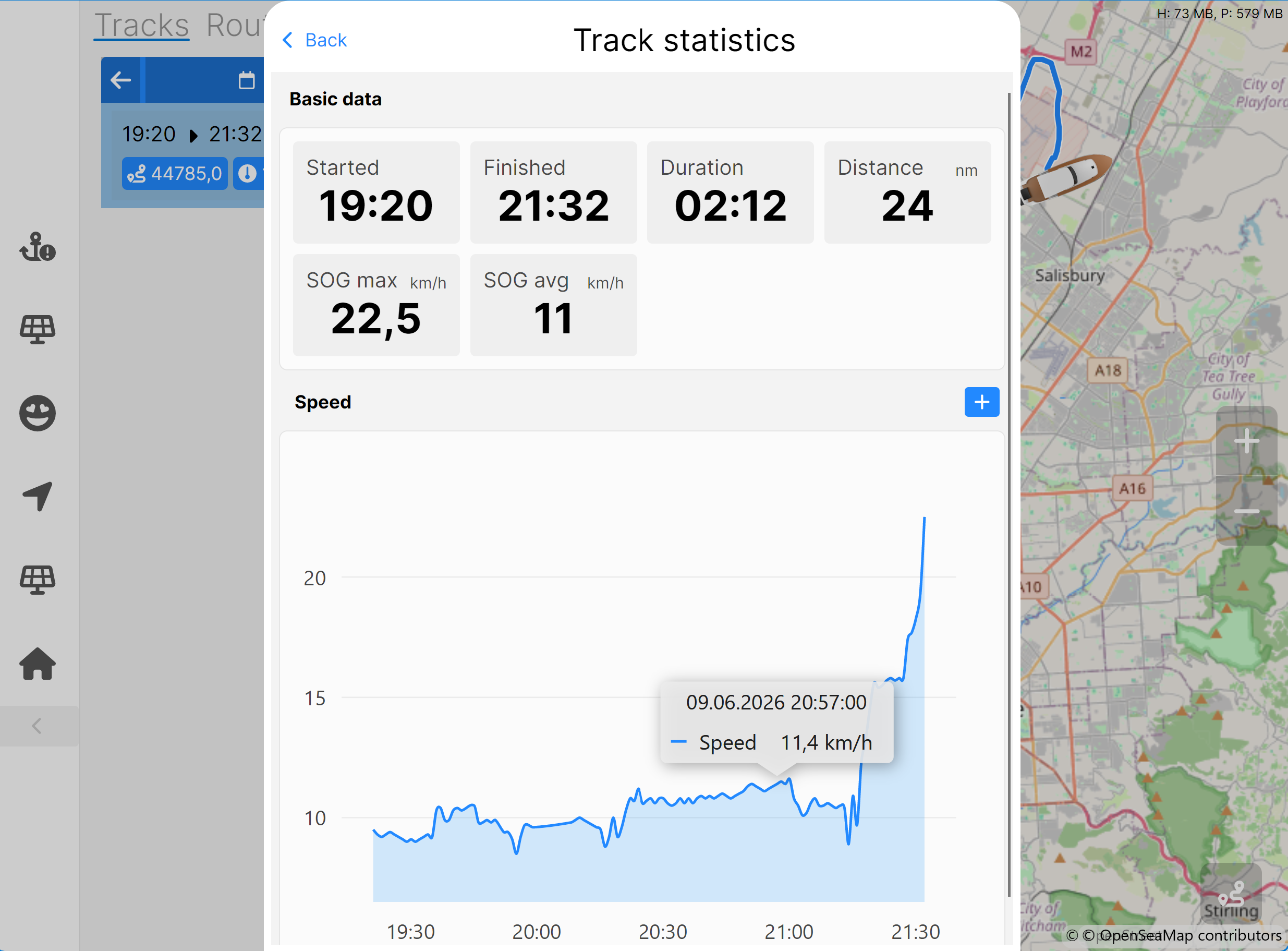
When you tap on the track options button you can show track statistics with time, speed statistics and speed graph. Track statistics allows user to add another graph like wind speed to analyze track and it's data accordingly.
User can save the track into routes that will switch into route editor mode.
Another track options are very handy, for example you can store GPX file to share your track with friends, or use function Save as image and share your track on social media (please when you do use hashtag #MadeWithSKipperApp or #SKipperApp, thank you!).
Routes
Routes flyout tab will show all routes stored in Signal K server. You can use text search to filter your routes. When you tap on the route it will get shown on the map with all the waypoints indicated as dot.
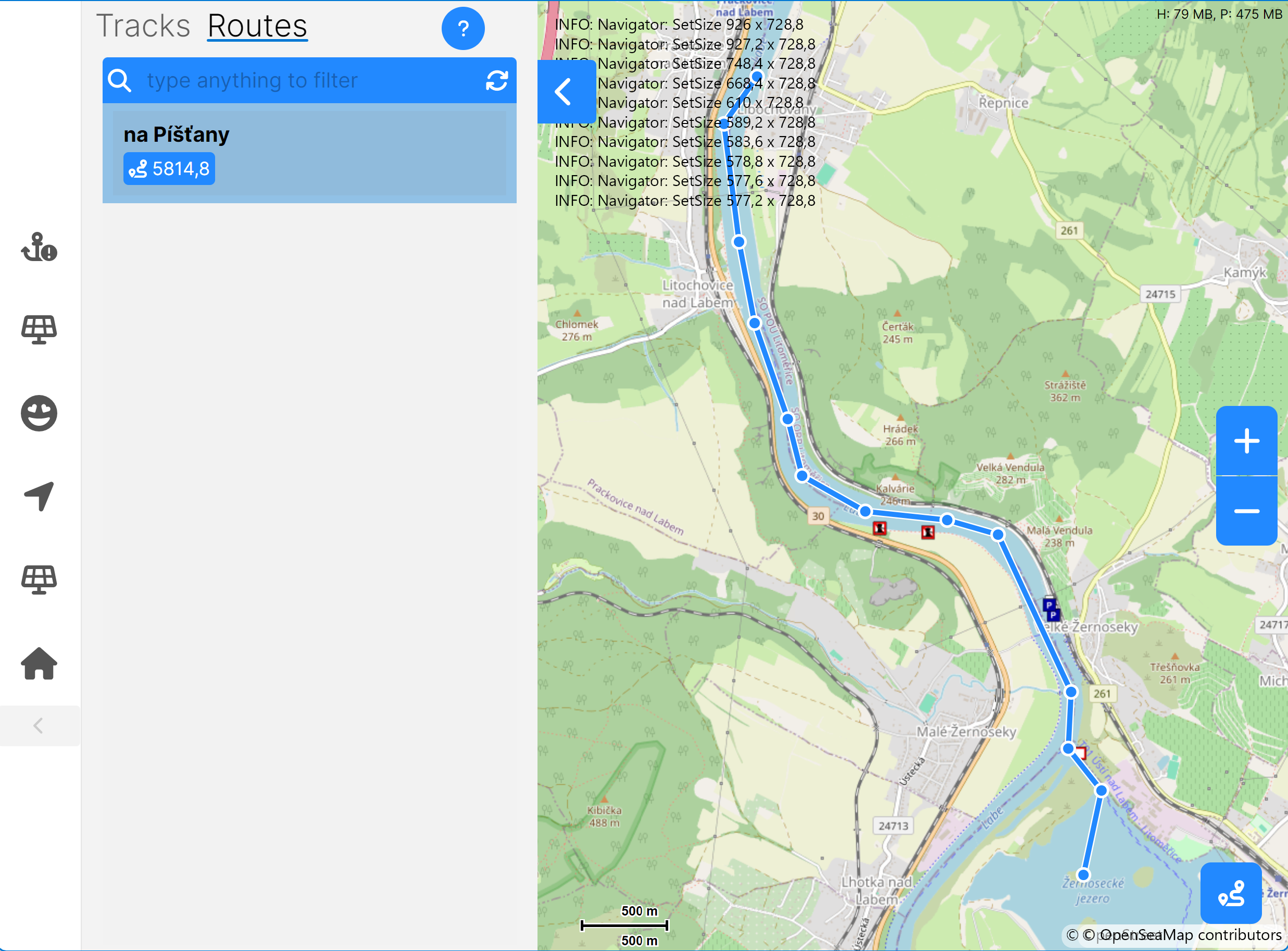
In the lower-right corner of the screen new button with route like icon appears. Tap on it to show route options.
Edit route points - allows you to change route points, add new points and design your route on the screen. You can drag the waypoints to change the route, if you tap on free
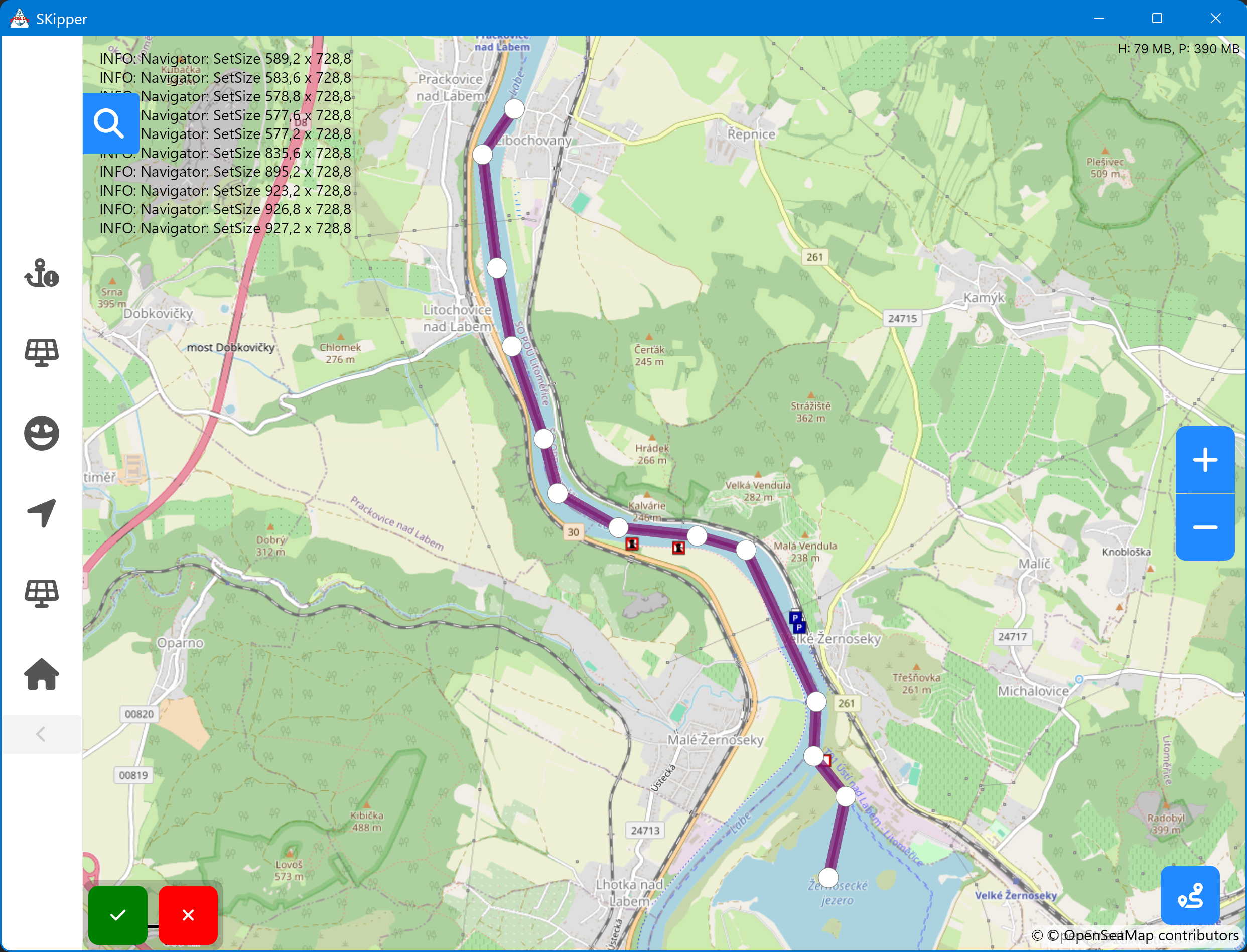
Edit properties - you can edit route name and description for now Save as image - similarly to track you can make and image of your route to share the route to social network. Delete route - this will remove the route from server. NOTE: when you delete the route from server it's gone.
Edit Pages
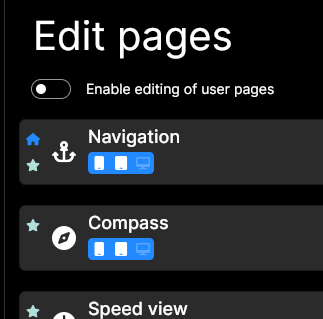
This is where you go to organize the Home Screen on each of your devices. (Pro tip: you can get to this screen with a right-click on any user-defined Page, or with a double-tap on any user-defined Page if you have it configured in Settings.)
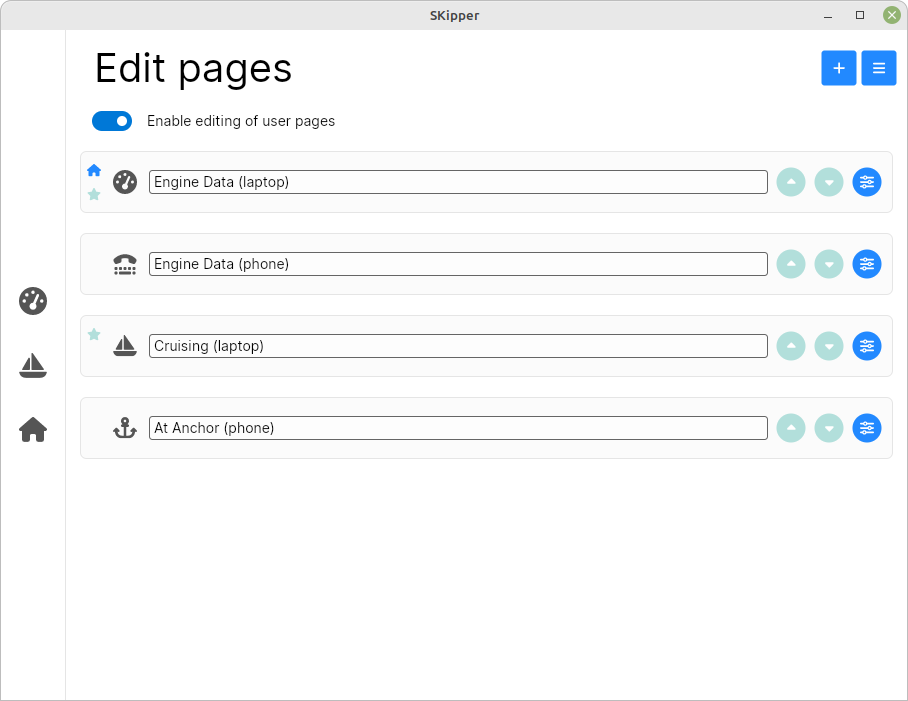
From this screen, you can:
- Enable editing of the individual user-defined Pages (upper left corner)
- Add a new Page to your UI ("+" icon in upper right corner)
- See the icon for each Page
- See the devices that each Page will be visible on (phone, tablet, computer)
- See which Pages are configured to display their icon on the Icon Bar (the little star next to the icon indicates the icon is visible on the Icon Bar)
- See which Page is configured to always come up when you start SKipper on this device (the little "house" icon next to "Navigation" in the image above)
- Change the order of the Pages on the Home Screen, which changes the order of their icons on the Icon Bar (the up / down arrow buttons at the right side of the name fields)
- Bring up a menu of other things you can do with each individual Page (image below) (little round settings-like icon at the far right of each Page)
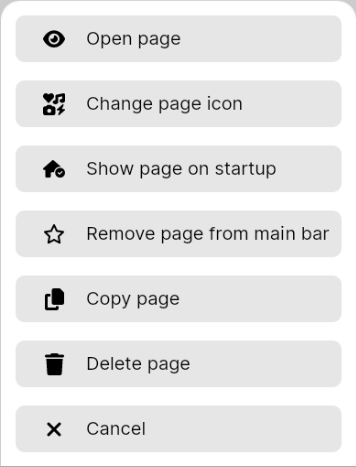
Open Page
When you're at this point, if you want to see what the Page looks like, you can click this menu item. However, you would not normally come to this menu to open a Page - you would normally just click on its icon from any screen in SKipper.
Edit Page
Brings up the Edit Page pop-up, from which you can:
- Change the name of the Page
- Change the icon
- Display or hide the Page's icon on the icon bar
- Select which platforms (device types) on which to make this Page visible on the Home Screen
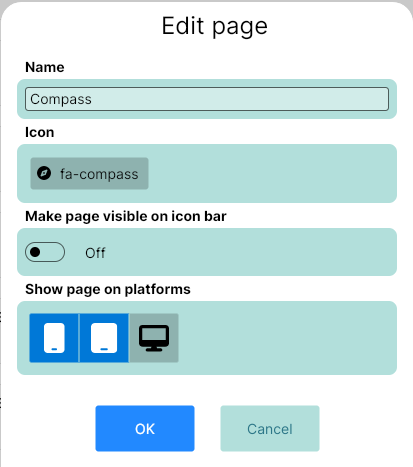
Change the Icon
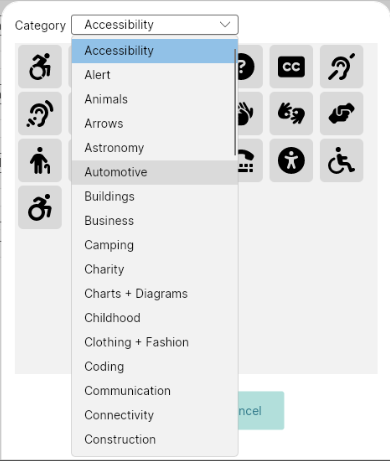
To change the icon, simply click on the icon that's already there ("fa-compass" in the image above). This brings up the list of icons available in SKipper - there are a LOT! The image below shows just some of the categories, and each category has many icons. Spend a little time and you'll find just the right icon for each one of your Pages.
Note that you can use the same icon for more than one Page, which might be appropriate for two pages that serve the same purpose (like "Engine data - laptop" and "Engine data - phone"), but are used on different devices. (See below for how to show and hide a Page on different device types.)
Make Page Visible on Icon Bar
If you make a Page that you are rarely going to use, or that you're not yet ready to use, or that you don't want to use anymore but you don't want to delete it yet, turn off its icon with this switch. For any Page that you want to use, turn its icon on.
Show Page on Platforms (Devices)
Remember that your UI includes all the Pages you've created for all of your devices, and you may not want to use them all on every device. For example, you won't want to use a Page that you designed for a 24" desktop screen, with 30 different Controls, when you're on your phone, so un-select the little blue and white phone. It will turn black and gray to indicate that this Page won't be visible when you're using SKipper on a phone. It won't be included in the list of Pages on the Home Screen, and its icon won't appear on the Icon Bar. The only way to get to it on a phone is to go to the Home Screen, then to Edit Pages. By selecting which Pages will display on which device types, you will have the perfect assortment of Pages on each device: every Page you want, and none of the Pages you don't want.
Show Page on Startup
Each device on which you run SKipper can have a Page selected to automatically display when SKipper starts each time. This menu item is used to select that Page, and when the Page is selected, a little blue "house" icon appears next to the name of the Page on the Edit Pages screen. Note that this is "per device", not "per device type", so if you run SKipper on two different phones, for example, each phone can have a different startup Page.
Copy Page
This is used to copy a Page so that you can modify it for another use. Examples of this include:
- Copy a page with a very nice Layout that you want to use for a different collection of data. After you copy it, you would delete some or all of the Controls and replace them with different Controls showing different data, or you could simply change the binding to the Signal K Path for any control to change what it will display.
- Copy a Page that was created for one device, then modify it for use on another device. This won't work very well for devices with very different screens, but it will work very well for devices whose screens are very similar, but not so similar that you can use the same Page Layout for both of them.
Delete Page
Obvious... and dangerous! Of course, you'll get a warning before you complete this, because it can't be undone.
Notifications
Notifications page is your boat overview status page that shows any issues on your boat that Signal K is aware of. Detail
Data explorer
Data explorer main purpose is to show your boat data on in the graphs. It uses Signal K history API that support variety of databases (Influx DB v2, Parquet files, etc...). When you open data explorer it will be completely blank. But if you tap on + button you can select any Signal K path to visualize it in the graph. For example this graph will show temperatures in cockpit, vs stern vs water temperature.
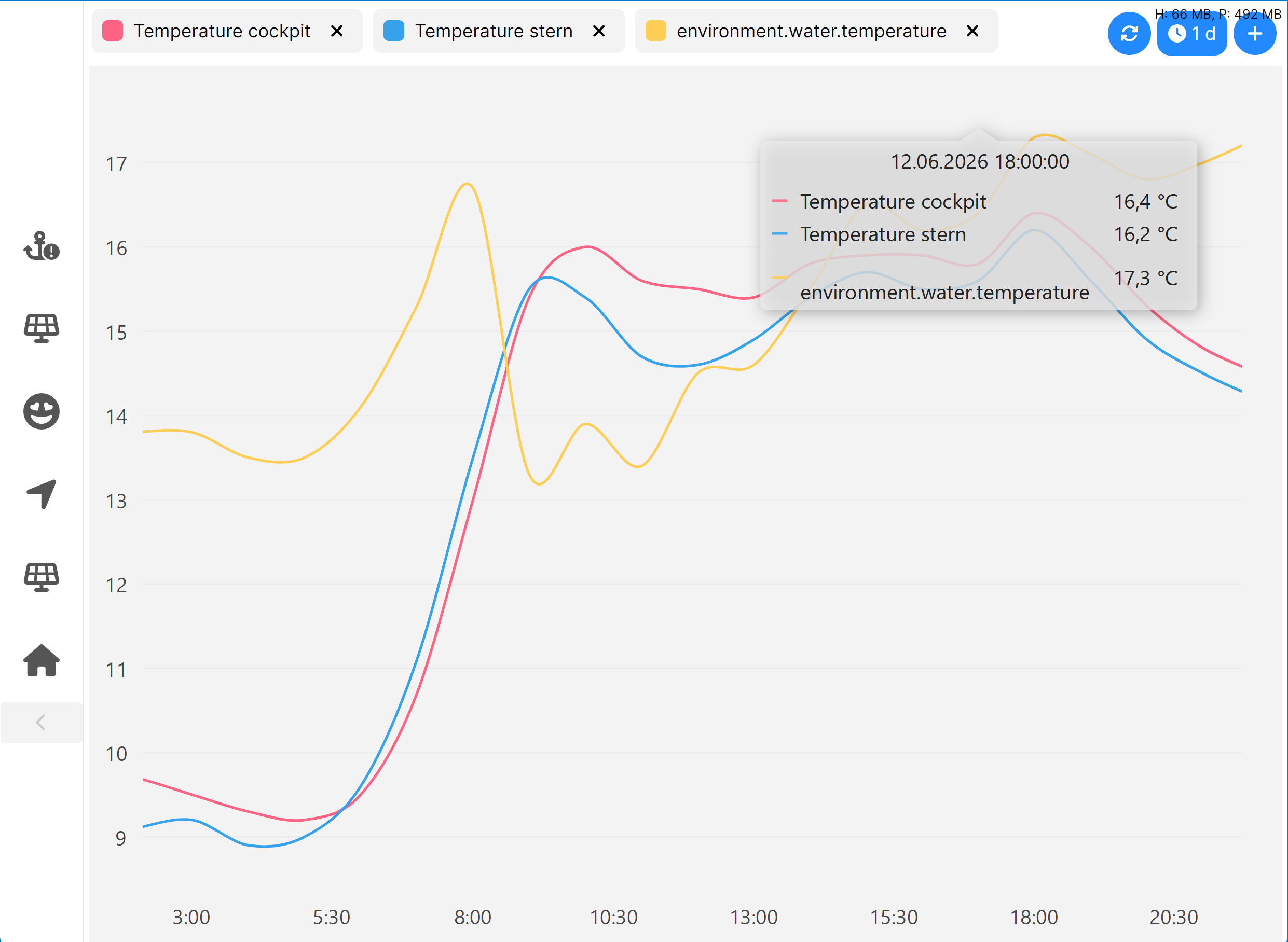
You can tap on the graph or hover with your mouse to see tooltip showing exact values for each line.
if you tap on time button at the upper-right corner of the screen, you can define time period, sampling interval and aggregation method for you graph.
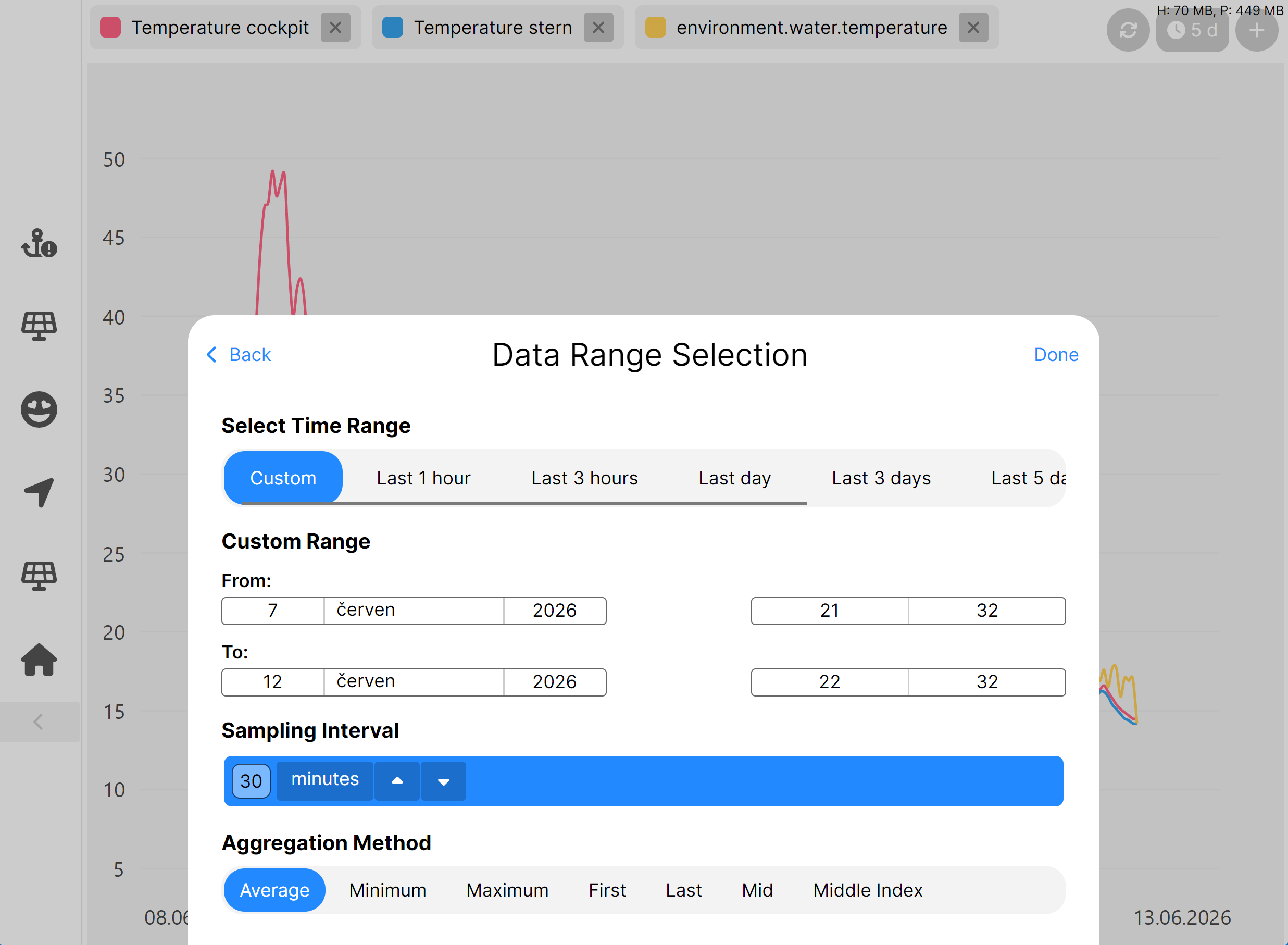
You can add, remove any Signal K path to visualize your data right now SKipper app! Cool, isn't it?
Settings
The other primary purpose of the Home Screen (besides the Edit Pages functions) is to configure all of the miscellaneous Settings. Below is a listing of them all, with explanations where necessary. (Pro tip: you can get to the Settings screen with a right-click on any user-defined Page, or with a double-tap if you have configured it to do so in Settings.)
Theme
By default, SKipper will use the 'environment.mode' Signal K path to switch between day/night themes automatically. It will use the "Day theme" when 'environment.mode' is day/dusk, and "Night theme" when it's dawn or night. You can disable this behavior with the 'Use Current Signal K Theme for SKipper' setting.
There are three themes to choose from for "Day theme" and "Night theme":
- Light theme is suitable for sunny days - the background color is white and all text is black.
- Dark theme is suitable for dawn/dusk or for anyone who likes using dark theme during day. The background is black and all text is white.
- Dark red is ideal for night operation when you don't want to impair your night vision. The background is black and all text is very dark red.
(Pro tip: you can change the theme with a right-click on any user-defined Page, or a double-tap on any user-defined Page if you have configured it, below.)
Show Notifications from Signal K
If enabled, notifications from Signal K will appear in SKipper in a bright red box. Only notifications equal to or more serious than the next setting will be displayed.
Minimum Notification State to Show
If you enable the previous setting, select the minimum notification state here. Notifications are listed here in order of urgency, from "Nominal" to "Emergency".
Run SKipper full-screen
Uses every bit of your screen for SKipper. This option is visible on PC, Mac and Android devices.
Allow Icons Bar to Hide
When you want to use the entire screen for SKipper, or you want to prevent accidentally switching Pages, you can allow SKipper to hide the icons bar. When you enable this setting, a new chevron will appear on the icons bar that will hide the icons bar on click/touch. When the icons bar is hidden, you can show it again with the Page context menu (right-click or press-and-hold), or by navigating to a non-user Page like 'Settings" or 'Home page'.
Double-tap on User Page Action
On touch-screen devices, you can double-tap on any user-defined Page to make this action happen. Choices are:
- ToggleEditMode (to enable / disable user-defined Page editing)
- ToggleTheme (between Light and Dark)
- ToggleIconBar (show it or hide it)
- ShowUserMenu (This is the most useful choice: it brings up a menu with these choices: enable or disable editing of user-defined Pages; toggle theme; bring up the Edit Pages screen; bring up the Settings screen)
Allow User-Page Touch Gestures
When this is enabled (on touchscreen devices only, of course), you can "pull" or "swipe" from any edge towards the middle of the screen to do these four things:
- From the left (only on a user-defined Page): goes to the previous user-defined Page (cycling through only the Pages with a visible icon in the Icon Bar).
- From the right (only on a user-defined Page): goes to the next user-defined Page.
- From the top: does whatever is defined as the "double-tap action" above.
- From the bottom (only on a user-defined Page): brings up the User Page Menu (menu items are "Edit Page Controls", "Switch theme", "Edit Pages", "Settings", etc.).
Detect UI Server Change Automatically
If this option is enabled: if you make a change to the SKipper UI on any device and save it to the server, you'll get a prompt when you start SKipper on all of your other devices that a UI change has occurred, so you can easily update the other devices. Keep in mind, however, that not every change to the UI will make a change to what every device "sees" in SKipper, because each user-defined Page is configured to show only on the device type(s) it is suitable for. So if you change a desktop-only Page from your desktop, and then start SKipper on your phone, you'll be prompted to update the UI - but you won't notice any change on your phone, because your phone won't ever show you that desktop-only Page.
Remote Page Control
You can control which Page is displayed in SKipper from another SKipper instance (running on another device), or from a Node Red flow. See Remote Page Control for details. Read and understand that chapter before you change this setting!
There are three options: 'Disabled' is the default; 'Listener' and 'Controller' are described fully in the above-referenced documentation.
Show Property Value Suggestions Based on Binding
When you bind a Signal K Path to a SKipper Control, there are certain things that can be assumed about how you will want to configure that Control. For example, what "unit" to use, such as "V" for any Path that is reporting voltage. This setting is enabled by default, and you will probably want to leave it enabled.
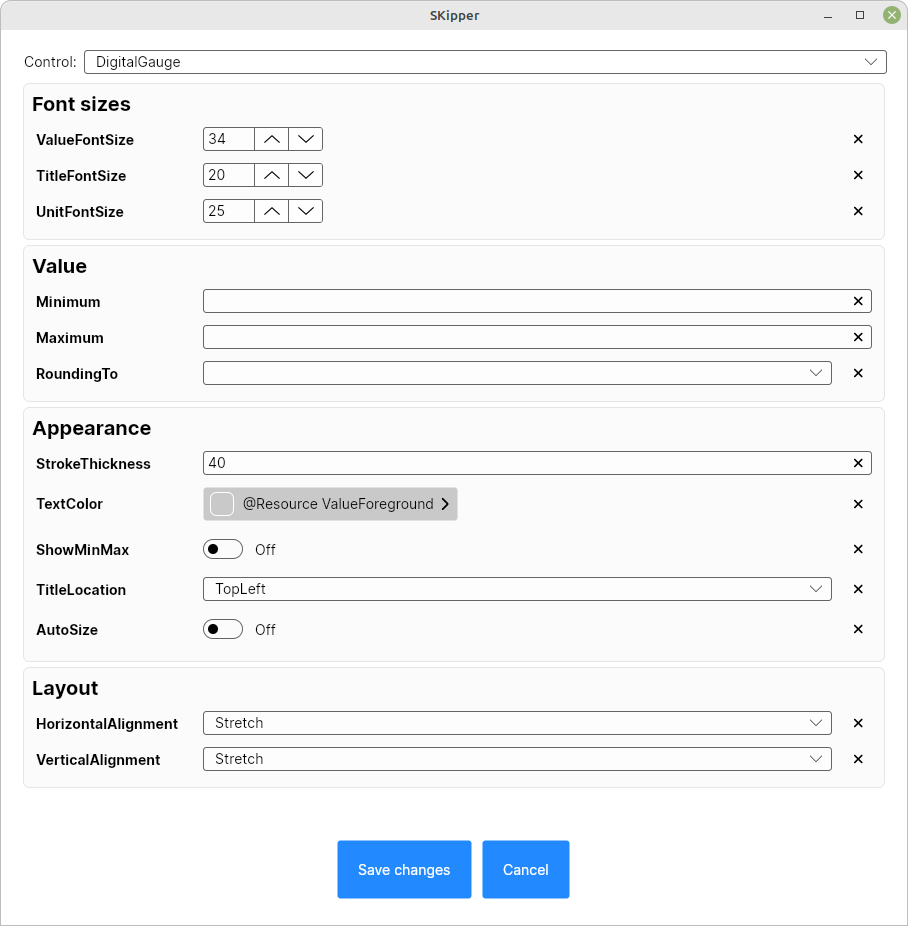
Controls Property Defaults
This allows you to change the default values for many aspects of each type of Control. See just one example in the image below. If you're creating your UI and you find yourself changing any of these things frequently, you might want to change their default values here.
Window Startup Location (desktop only)
If you enable this, you'll be prompted to set the size and location of the window in which you want SKipper to run the next time you start it.
Manage History Data Sets
This is where you go to add, edit, and delete History Data Sets, which are used by the Graph Control.
InfluxDB Configuration
Click on "Influx DB Address" to set or change the address of the InfluxDB database that you want your History Data Sets to have access to. From there, you also enter or change the credentials required by InfluxDB to allow access.
Signal K Server
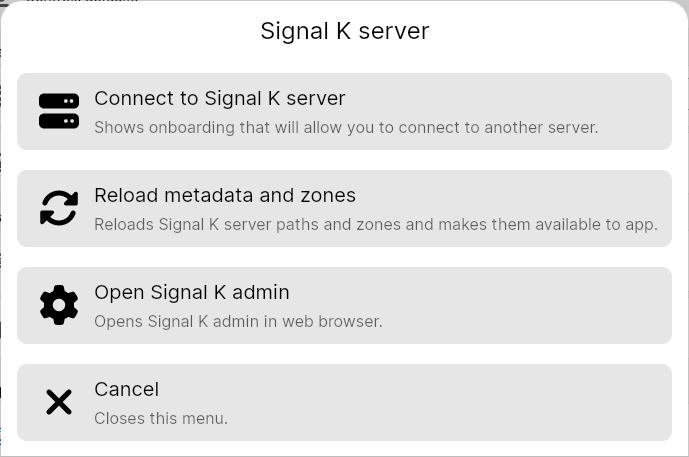
Brings up the following menu. Starting with version 1.25 you can switch between servers with ease! This allows you to switch between your remote IP (via Zerotier, Tailscale, etc..) and local IP. (In the future, SKipper will make this even easier.)
Load or Store UI on Signal K Server
Obvious.
Change Boat Image and Indicators
Click this to get to a page where you can choose the type of boat image to display in the middle of the Modern Compass Control. You can also add an "indicator" to the image, that can display a different icon in a different color, depending on the value of the Signal K path you select.
Sound (Enabled and Volume)
These two settings turn on or off sounds when a Notification is received from Signal K, and set the volume of the sound. These settings are device-specific, so set them on each device. Sounds are enabled by default, so if you don't want to hear them on a particular device, go into this Setting on that device and disable them.
Configure Default Units
Choose between Metric, Imperial, or Nautical units. No matter what you choose here, you can always override the unit for any SKipper Control.
Number of Decimal Places
This is the default for all digital numbers displayed by SKipper. Can be changed for any individual number, when you're creating or editing each Control.